
MCP Server
The Hands-on AI Playbook is available as an MCP (Model Context Protocol) server, so you can get playbook-informed answers directly in your AI tools — no API keys or authentication required.
MCP server URL: https://mcp.handsonai.info/mcp
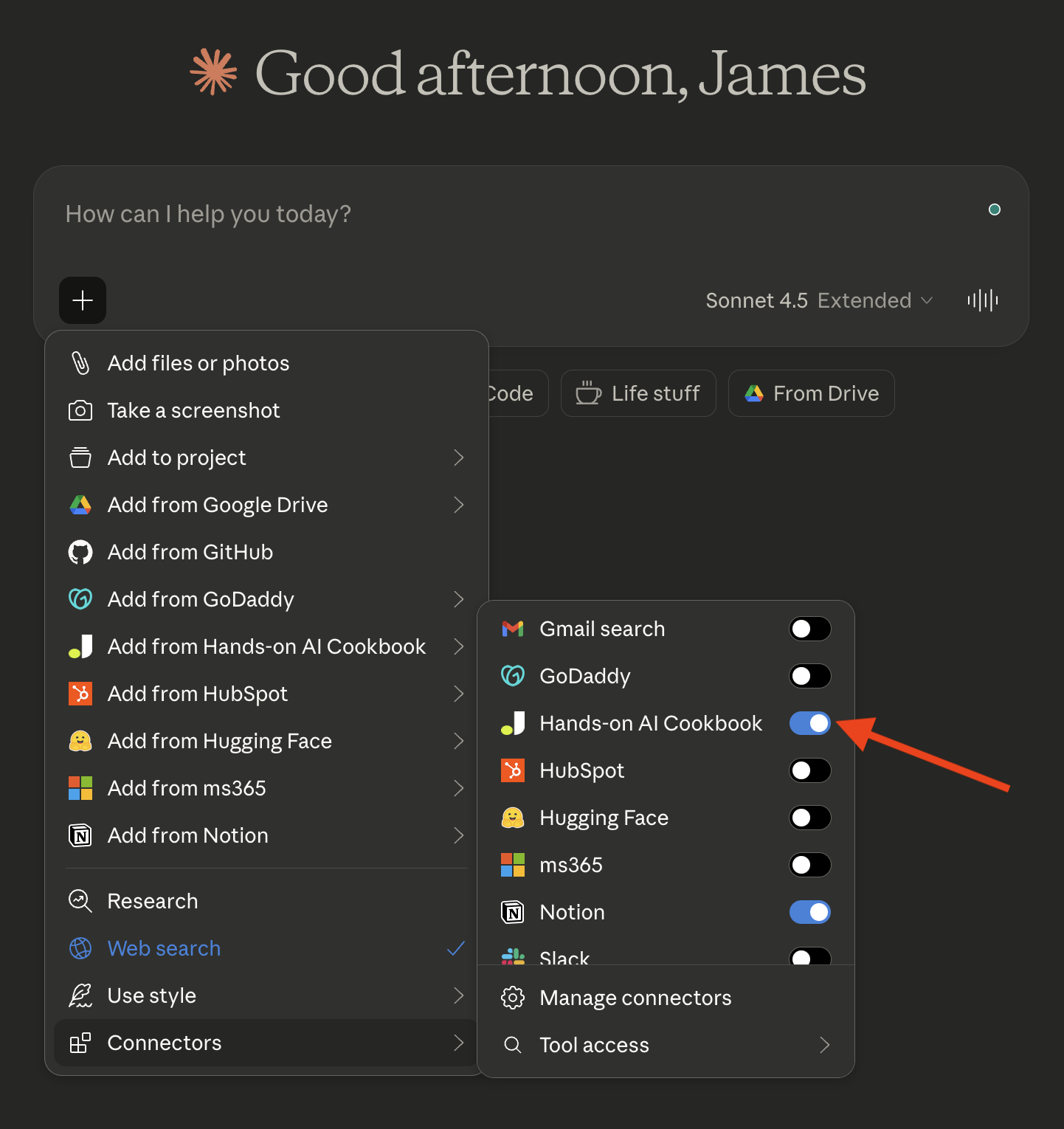
The Hands-on AI Playbook connector enabled in Claude. This works in any AI tool that supports MCP — see below for setup instructions for Claude, ChatGPT, Cursor, VS Code, and more.
What You Get
Section titled “What You Get”The MCP server gives your AI assistant access to:
- Search across all playbook pages by keyword
- Read the full content of any page
- Browse sections like Building Blocks, Framework, Use Cases, and more
- Deep dive into building blocks or framework steps with all sub-pages
- Q&A lookup with quick answers from the playbook’s question pages
- Setup guides for every tool in the Builder Tools
Connect from Claude
Section titled “Connect from Claude”Claude supports remote MCP servers as custom connectors across all its products. Add the connector once, and it’s available in Claude chat, Claude Desktop, and Cowork.
Claude (claude.ai) and Claude Desktop
Section titled “Claude (claude.ai) and Claude Desktop”- Go to Settings → Connectors
- Scroll to the bottom and click Add custom connector
- Enter the MCP server URL:
https://mcp.handsonai.info/mcp - Click Add
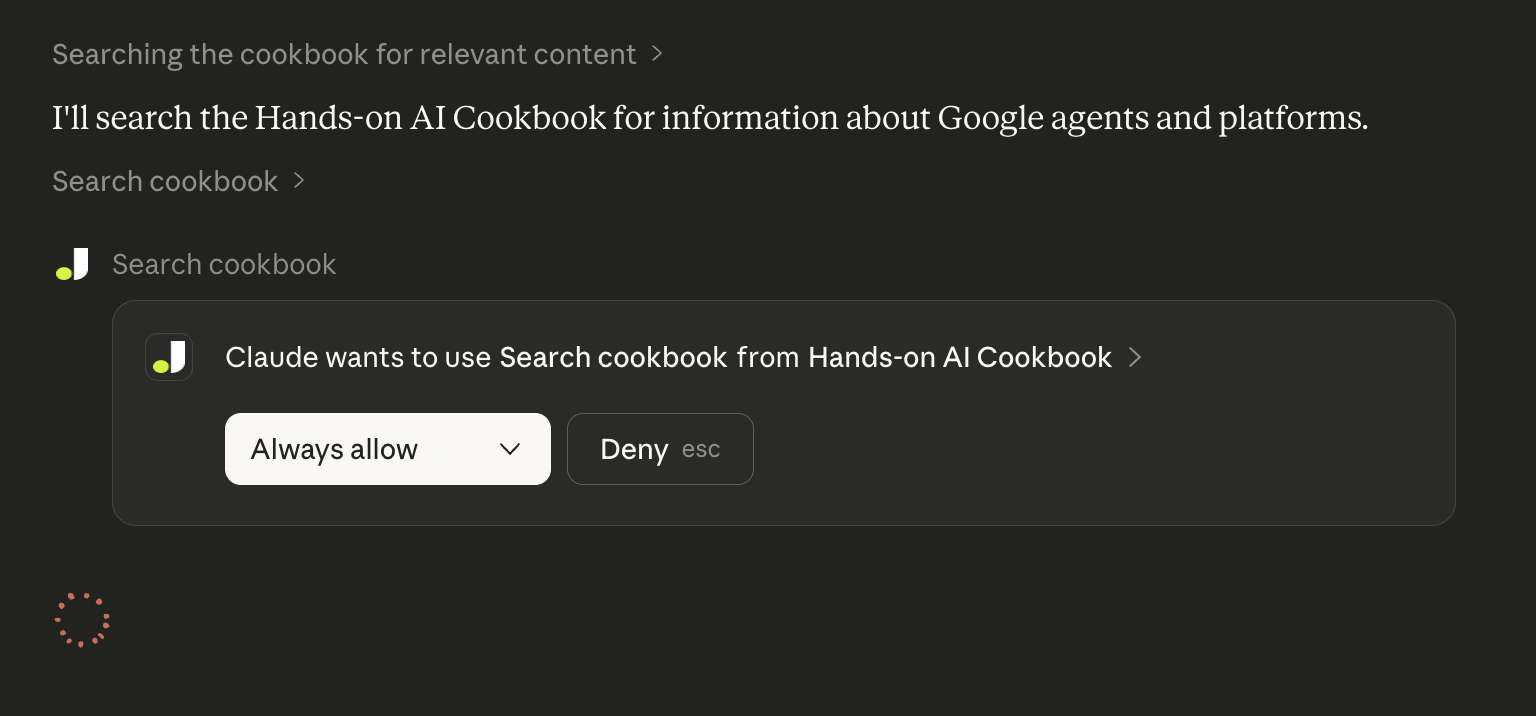
To use it in a conversation, click the + button in the chat input area, select Connectors, and toggle the Hands-on AI Playbook connector on. The first time Claude uses the connector, you’ll see a permission prompt — click Always allow so it can search the playbook without asking each time.
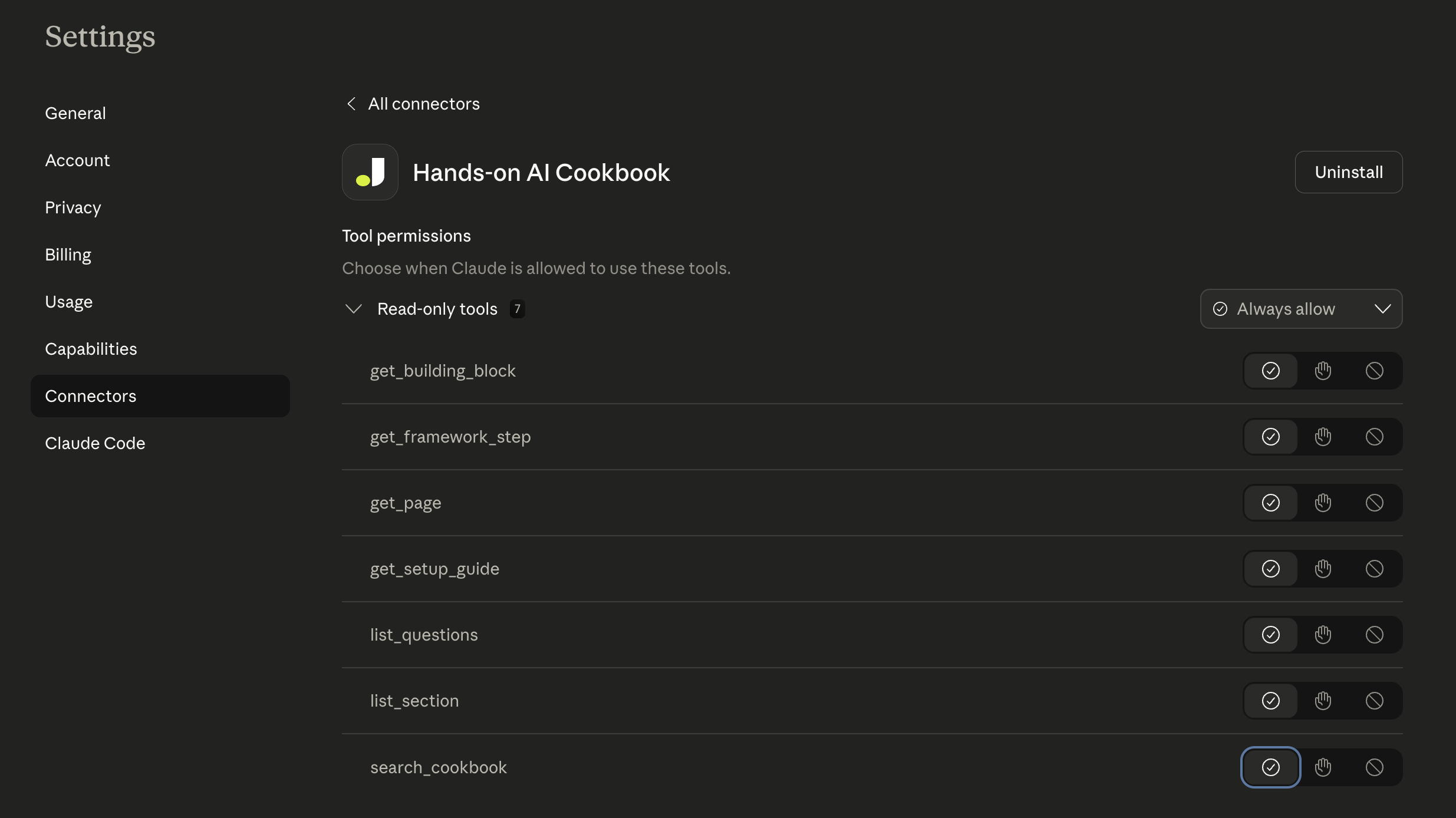
You can manage permissions for each tool individually in Settings → Connectors → Hands-on AI Playbook. From there, set each tool to always allow, ask every time, or deny — giving you full control over what Claude can access.
Claude Cowork
Section titled “Claude Cowork”Once you’ve added the connector using the steps above, it’s automatically available in Cowork. When Cowork runs a task, it can use the playbook connector to search for relevant content, look up setup guides, or reference building block definitions.
Claude Code
Section titled “Claude Code”Run this command in your terminal:
claude mcp add handsonai-playbook --transport http https://mcp.handsonai.info/mcpThat’s it. Claude Code will now have access to all playbook tools in every conversation.
Connect from ChatGPT
Section titled “Connect from ChatGPT”ChatGPT supports remote MCP servers as apps. Available on Plus, Pro, Team, Enterprise, and Edu plans.
Enable Developer Mode (one-time setup):
- Go to Settings → Apps
- Under Advanced settings, toggle Developer Mode on
Add the app:
- In Settings → Apps, click Create app
- Fill in:
- Name: Hands-on AI Playbook
- URL:
https://mcp.handsonai.info/mcp
- Check the box confirming you trust this application
- Click Create
Use it in a conversation:
- Start a new chat
- Click + → More → Developer Mode
- Select the Hands-on AI Playbook app to enable it
Connect from Cursor
Section titled “Connect from Cursor”Cursor supports MCP servers via the Command Palette or the Settings UI.
Option 1 — Command Palette:
Open the Command Palette (++cmd+shift+p++ on Mac, ++ctrl+shift+p++ on Windows/Linux) and search for View: Open MCP Settings. Cursor will open a mcp.json file — paste the configuration shown below, then save.
Option 2 — Settings UI:
- Go to Settings → MCP
- Click + Add new global MCP server
- Cursor will open a
mcp.jsonfile — paste this configuration:
{ "mcpServers": { "handsonai-playbook": { "url": "https://mcp.handsonai.info/mcp" } }}- Save the file — Cursor will detect it and show the server in the MCP panel
You should see a green indicator next to “handsonai-playbook” in the MCP settings panel. The playbook tools will be available in Cursor’s Agent mode.
Connect from VS Code
Section titled “Connect from VS Code”VS Code (with GitHub Copilot) supports MCP servers via workspace or user settings.
Option 1 — User settings (available in all projects):
Open the Command Palette (++cmd+shift+p++ on Mac, ++ctrl+shift+p++ on Windows/Linux) and search for MCP: Add Server. Select HTTP as the transport type, enter https://mcp.handsonai.info/mcp as the URL, and name it handsonai-playbook.
Option 2 — Manual JSON configuration:
Add the following to your VS Code settings.json (user or workspace):
{ "mcp": { "servers": { "handsonai-playbook": { "type": "http", "url": "https://mcp.handsonai.info/mcp" } } }}The playbook tools will be available in GitHub Copilot’s Agent mode (the @ chat mode).
Connect from Other MCP Clients
Section titled “Connect from Other MCP Clients”Any MCP client that supports Streamable HTTP transport can connect:
- URL:
https://mcp.handsonai.info/mcp - Transport: Streamable HTTP (POST with JSON-RPC 2.0)
- Authentication: None required (public, read-only)
Available Tools
Section titled “Available Tools”| Tool | Description |
|---|---|
search_playbook | Search pages by keyword, optionally filtered to a section |
get_page | Get the full content of a specific page by path |
list_section | List all pages in a section (building-blocks, framework, use-cases, etc.) |
get_building_block | Get a building block and all its sub-pages (prompts, agents, mcp, etc.) |
get_framework_step | Get a framework step and all its sub-pages (discover, deconstruct, build) |
list_questions | List all Q&A pages with question text and short answers |
get_setup_guide | Get a Builder Tools setup guide (terminal, editor, git, claude-code, etc.) |
Example Prompts
Section titled “Example Prompts”Once connected, try asking your AI assistant:
- “What are the agentic building blocks?”
- “How do I set up Claude Code?”
- “Search the playbook for prompt engineering techniques”
- “What’s the Business-First AI Framework?”
- “Show me the automation use case”
The AI will use the playbook MCP tools to pull relevant content and answer with playbook knowledge.